Easy-Scout XP allows users to create a backup copy of all information currently entered. You can also restore a backup copy to return Easy-Scout to it's previous state.
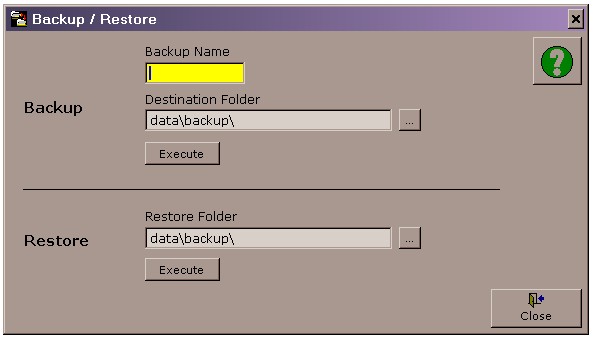
Use the Utilities Menu to access the Backup/Restore form shown below.
Backup
Use the upper section of this form to create a backup. Specify the Backup Name and click the Execute button to begin the backup process. After processing the backup will be copied to a folder. The destination folder is the location specified to store the backup folder. A valid destination can be reached by typing manually or by using the ellipses (…) button.
Note: an emergency backup is also created each time the application is closed.
Restore
Use the lower section of this form to restore a backup file and return Easy-Scout XP to a previous state. Locate and select one of the previously created backup folders and click the Execute button.