To Run Basic Reports:
- Select the Reports Icon from the Task Bar to display the Reports Pane.
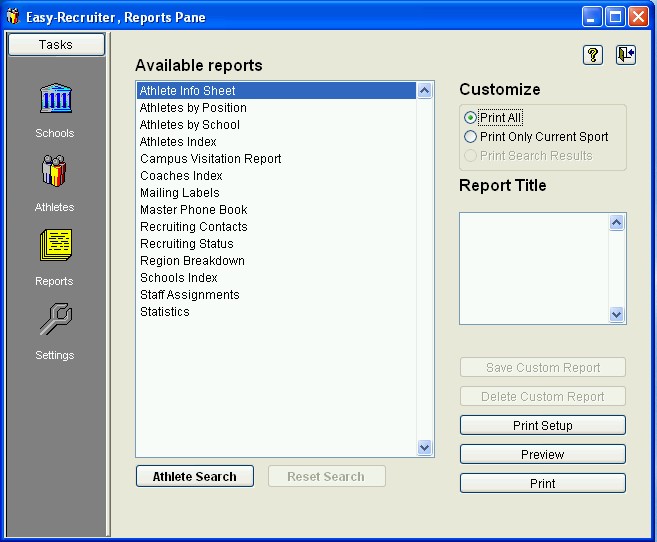
- Select the type of report you would like to run from the list of Available Reports.
- (Optional) If the selected report displays athlete related information, use the Athlete Search buttons to filter the information shown on report, or
- (Optional) If the selected report displays school related information, use the School Search buttons to filter the information shown on report.
- Use the Customize Options to indicate which records to print. Choices include Print All (entire list), Print Current List (only records applicable for Current Sport), or Print Search Results (if an athlete or school search has been run).
- Use the Print Setup button to configure settings and options for the current printer.
- Select the Preview Button to view the selected report.
- Use the Print button to send the report to the current printer.
Tip! If you use the
Athlete Search or
School Search features to filter specific records, you can
Save those selections (search criteria plus chosen report) for future use as a
Custom Report.
See also:
 Running Basic Reports