For a general overview of Importing and Exporting features, see Importing/Exporting Information.
The Advanced Import feature can be used to pull in external data that combines information from multiple task areas of Easy-Recruiter. This allows you to mix and match fields from Athletes, Schools, and/or Coaches. Additionally, the order of fields is defined by the user and can be customized to support importing data from a variety of sources.
Using the Advanced Import feature:
- Set the appropriate Current Sport on the Athlete Pane.
- Then use the
 toolbar button from any of the major task areas.
 - Complete the Basic Import dialog window by selecting the desired File Format and a File Name. Then click on the "Advanced" button to display the following screen.
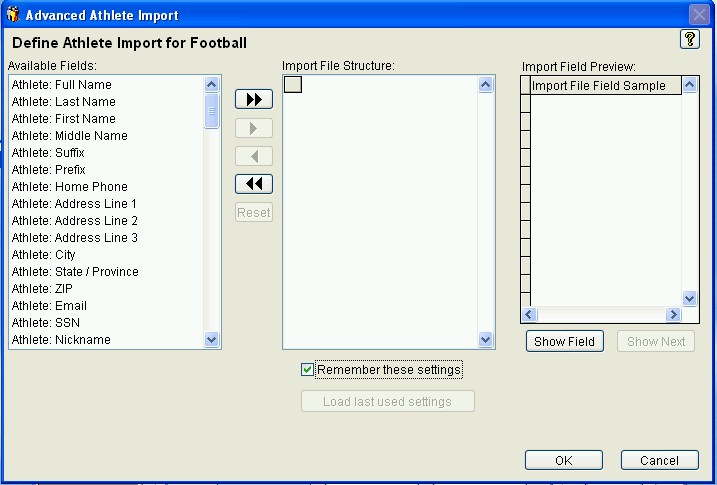
The Advanced Import screen contains three lists and various controls for specifying the appropriate field layout of your import file:
- Available Fields list for choosing fields that are included in the import file.
- Import File Structure list is populated by moving selections from the Available Fields list. When finished using this screen the list should display which fields are being imported and the order of those fields.
- Import Field Preview list that displays what the data looks like in a given field position in the Import File Structure.
Defining Import File Structure:
- You need to specify which fields are included in the import file and define the proper order of those fields from top to bottom based on how they appear in the file. Move selections from the list of Available Fields on the left to create a list of fields under the Import File Structure on the right.
- To move fields from one list to another, either double-click on the field name or use the arrow buttons that appear between the two lists.
- Single arrow buttons move the currently selected field from one list to the other.
- Double arrow buttons move all fields from one list to the other.
- You can arrange the order of selected fields listed under the Import File Structure by dragging the gray box beside each field name up or down.
- If the import file contains additional fields that are not listed under AvailableFields, use the Unused Fields as a placeholder to designate where these extra pieces of data are located in the Import File Structure. You can find these placeholders at the bottom of the list of Available Fields.
- Use the "Reset" button to start over, if necessary.
- Place a checkmark beside "Remember these Settings" if you wish to save the defined Import File Structure for the current sport to re-use at a later date.
- Use the Load Last Used Settings button (if available) to retrieve and re-use a previously saved Import File Structure for a specific sport.
- Once the list of fields under Import File Structure is defined correctly, click the OK button to start the import process.
Previewing Import File Structure:
- Each time you horizontally move a field from the Available Fields list to the Import File Structure list, the Import Field Preview list automatically updates for the selection and displays a sample of data from the specified file for the current field position. This makes it easy to verifying you are defining the fields in your Import File Structure in the proper order.
- If you rearrange the order of fields listed under Import File Structure, you must manually click the "Show Field" button to update the Import Field Preview list to reflect your changes after a vertical move.
- You can change the field position being shown in the Import Preview List by clicking on any field currently listed under Import File Structure and then using the "Show Field" button.
- You can also use the "Show Next" button to navigate down the list of fields displayed on the Import File Structure list. Once current field selection reaches the button of the list, Show Next will start over at the top of the list. This makes it easy to double check your Import File Structure one last time by previewing the all listed fields consecutively.
- Once your Import File Structure is properly defined, click the "OK" button to run the import process.
See also:
 Advanced Import