Use the Applications Settings toolbar button  or select this option to launch the form shown below.
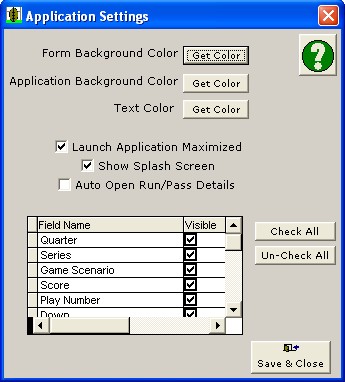
You should see two columns in the grid; Field Name and Visible. If the Visible column is hidden, drag the vertical right margin of the fieldname until it appears. Remove or replace check marks in the Visible column to indicate which fields you wish to use. Use the Check All or Un-check All buttons to change the entire list of Field Names. Click the Save & Close button to save changes.
There are 3 color settings available on the upper portion of this form. These settings can be modified by pressing the "Get Color" button. This will open the color picker, for choices.
- Form Background Color
- Application Background Color
- Text Color
Launch Application Maximized If this option is checked the application will always launch maximized. If this button is not checked the application will open to its previous state.
Show Splash Screen There is a splash screen displayed when the application is first launched. Un-checking this, will suppress the splash screen.
Auto-Open Pass/Run Details - Check this option if you want to automatically open the Run Details or Pass Details screen after the Play Type is selected. For example, if you click Run as the Play Type, you will automatically see the Run Details screen where you can enter the Ball carrier, Hole Hit and Run Type. Each time a new play is started, the Main tab is displayed. You will need to click the Main tab again if you want to enter information about the Defense. If you don't plan to enter Run and Pass Details, leave this option unchecked, which is the Default.
FIELD NAMES
The grid on the lower portion of this form is used to select which controls are visible on the Play Information-Main screen. If you don't use a particular Field on that screen for entering data, you can remove it from the plays form by un-checking the corresponding check box in the grid. This makes navigating during data entry much easier, since you will no longer have to tab through items that you never use.
You should see two columns in the grid; Field Name and Visible. If the Visible column is hidden, drag the vertical right margin of the fieldname until it appears. Remove or replace check marks in the Visible column to indicate which fields you wish to use. Use the Check All or Un-check All buttons to change the entire list of Field Names. Click the Save and Close button to save changes.