To Search for Schools:
- Select the School Icon from the Task Bar to access the Schools Pane.
- Click on the Search Button, directly above the list of school records displayed in the lower grid portion of the screen.
- In the dialog box below, locate the field or fields you want to use as search criteria (see Available School Search Fields listed below).
- Click on the "Operator" column for the desired field to specify a condition other than "equals to".
- Click on the "Values" column for the desired field to specify the value for your search criteria. You can either enter the value your searching for or select one from the drop down list.
- You can use the "Not" indicator on a given field to further refine the "Operator" clause in your search criteria.
- You can use the "Ignore Case" indicator to handle upper case and lower case sensitivity.
- Then select OK. The results of your search will be displayed on the Schools Pane and will be made available for Customizing Reports and Importing/Exporting Schools.
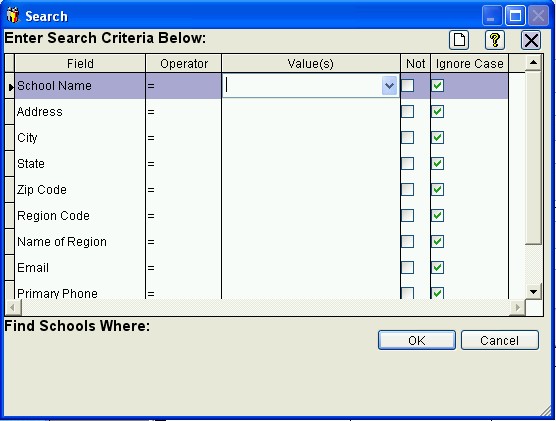
Available School Search Fields:
- School Name
- Address line 1
- City
- State
- Zip Code
- Region Code
- Name of Region
- Primary Email Address
- Primary Phone Number
- Assigned Staff
- Athletic Director
See also:
 Searching for Schools